
Introduction
A computer that refuses to start properly can be stressful and frustrating. You press the power button, but instead of loading Windows normally, the system gets stuck on a black screen, enters an endless restart loop, or displays startup error messages.
Startup problems can stop you from accessing important files, work documents, photos, and applications. In some cases, users fear they may lose all their data or need to replace their computer entirely.
Fortunately, many Windows startup issues can be repaired without advanced technical knowledge. Windows includes built-in recovery tools designed to fix boot problems, corrupted files, and startup errors automatically.
This Windows startup repair guide explains the common causes of startup failures and provides step-by-step methods to get your PC working again.
Main Causes
Understanding the reason behind startup issues can make troubleshooting much easier.
Corrupted System Files
Windows relies on important system files during startup. If these files become damaged because of improper shutdowns, failed updates, or malware, the operating system may fail to boot correctly.
Failed Windows Updates
A failed or interrupted Windows update can create boot problems. Sometimes updates modify startup files and leave the system unstable if installation does not complete properly.
Hard Drive or SSD Problems
Storage drives can develop bad sectors or hardware failures over time. If Windows cannot access important boot files, startup repair issues may occur.
Driver Conflicts
Faulty or incompatible drivers may prevent Windows from loading properly. Graphics drivers and storage drivers are common causes of startup crashes.
Malware or Corrupted Software
Viruses and malicious software can damage startup processes or system files, making Windows unable to boot normally.
Step-by-Step Solutions
Start with the simpler fixes before moving to advanced troubleshooting methods.
Disconnect External Devices
Sometimes external hardware interferes with the startup process.
Disconnect the following:
- USB drives
- External hard drives
- Printers
- Game controllers
- Docking stations
After disconnecting everything unnecessary, restart your PC.
Force Restart the Computer
Temporary glitches can occasionally stop Windows from starting.
Steps:
- Hold the power button until the PC shuts down
- Wait about 30 seconds
- Turn the computer back on
If Windows still fails to load, continue with the next solutions.
Enter Windows Recovery Environment
Windows Recovery Environment (WinRE) provides repair tools for startup problems.
How to access it:
- Turn on the computer
- Force shutdown during boot by holding the power button
- Repeat this process 2–3 times
Windows should automatically open the recovery screen.
You can also access recovery tools using a Windows installation USB.
Run Startup Repair
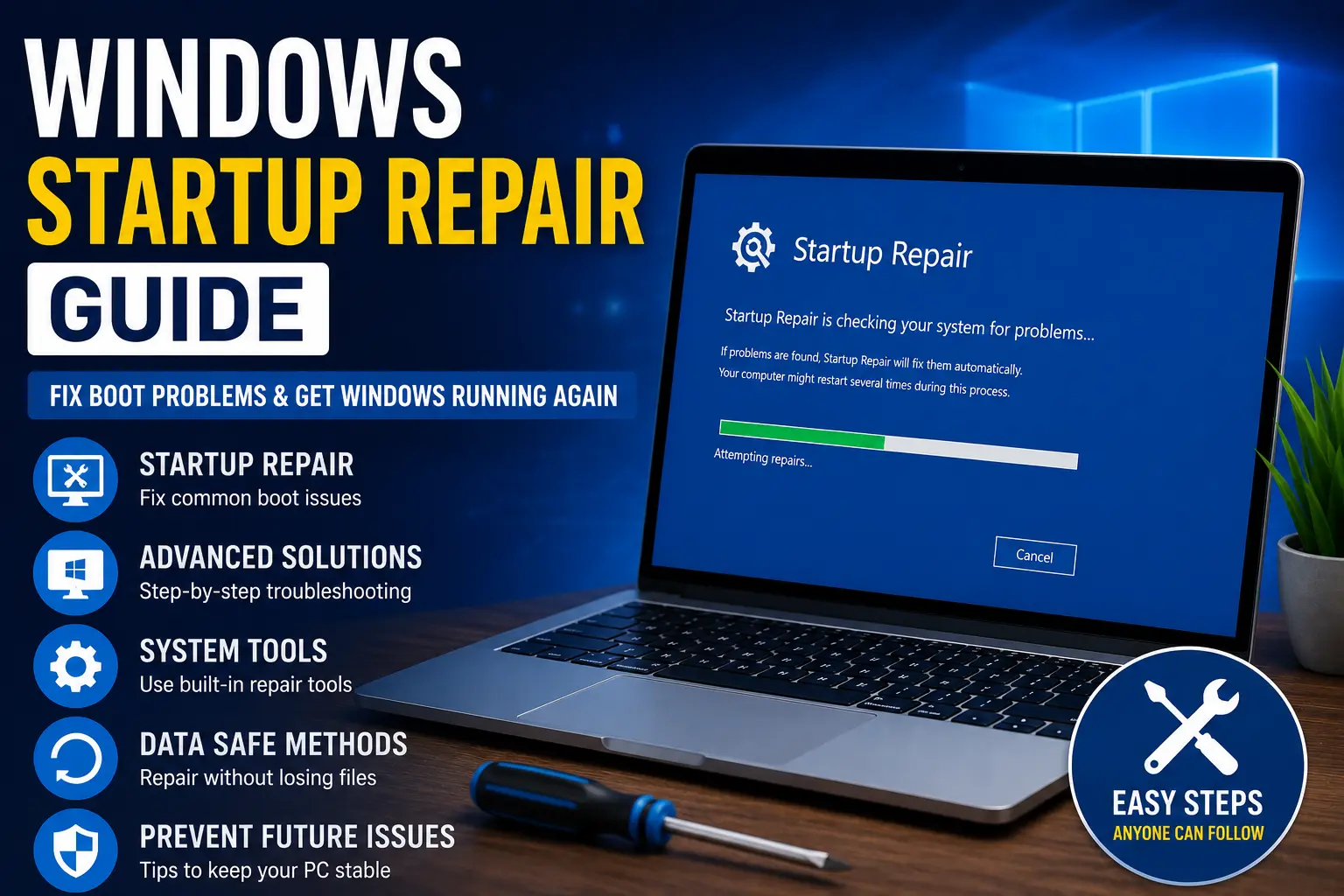
Startup Repair is one of the most effective built-in tools for fixing boot issues.
Steps:
- Open Windows Recovery Environment
- Select Troubleshoot
- Click Advanced options
- Choose Startup Repair
- Select your Windows account
- Enter your password if prompted
Windows will scan for startup issues and attempt repairs automatically.
Boot into Safe Mode
Safe Mode starts Windows with only essential drivers and services.
Steps:
- Open Advanced options
- Select Startup Settings
- Click Restart
- Press 4 or F4 for Safe Mode
If Windows works normally in Safe Mode, a driver or software conflict may be causing the startup problem.
Uninstall Recent Updates
If startup problems began after a Windows update, removing the update may solve the issue.
Steps:
- Open Advanced options
- Select Uninstall Updates
- Choose either:
- Uninstall latest quality update
- Uninstall latest feature update
Restart the PC after removal.
Use System Restore
System Restore returns Windows to an earlier working state.
Steps:
- Open Advanced options
- Select System Restore
- Choose a restore point created before the problem started
- Follow the on-screen instructions
This method does not usually remove personal files.
Repair Corrupted System Files
Damaged system files can prevent Windows from booting correctly.
Run SFC Scan
- Open Command Prompt from recovery options
- Type:
sfc /scannow
- Press Enter
Allow the scan to complete fully.
Run DISM Commands
If the problem remains, type these commands one at a time:
DISM /Online /Cleanup-Image /CheckHealth
DISM /Online /Cleanup-Image /ScanHealth
DISM /Online /Cleanup-Image /RestoreHealth
Restart the computer afterward.
Check Disk for Errors
Storage problems can damage startup files.
Run CHKDSK
- Open Command Prompt
- Type:
chkdsk /f /r
- Press Enter
- Restart the computer
Windows will scan the drive and repair disk errors.
Advanced Fixes
If standard methods fail, these advanced solutions may help.
Rebuild Boot Configuration Data (BCD)
Corrupted boot records can stop Windows from loading.
Steps:
- Open Command Prompt in recovery mode
- Run these commands one at a time:
bootrec /fixmbr
bootrec /fixboot
bootrec /scanos
bootrec /rebuildbcd
Restart your PC after running the commands.
Disable Automatic Restart
Automatic restart can hide important error messages.
Steps:
- Open Advanced options
- Select Startup Settings
- Choose Disable automatic restart on system failure
This allows you to see the actual error code during crashes.
Check BIOS or UEFI Settings
Incorrect BIOS settings may prevent the system from detecting the boot drive.
Verify:
- Boot order
- SSD or HDD detection
- Secure Boot settings
Be careful when changing BIOS settings if you are unfamiliar with them.
Test RAM for Problems
Faulty memory can cause startup failures and crashes.
Steps:
- Search for Windows Memory Diagnostic
- Run the tool
- Restart the computer for testing
Replace faulty RAM if errors are detected.
Reset or Reinstall Windows
If severe corruption exists, reinstalling Windows may be necessary.
Reset Windows:
- Open Recovery Environment
- Select Troubleshoot
- Click Reset this PC
Choose:
- Keep my files
- Remove everything
Select the option that best fits your situation.
Tips to Prevent the Issue
Regular maintenance can reduce the risk of startup problems.
Keep Windows Updated
Install updates regularly to improve security and system stability.
Avoid Forced Shutdowns
Turning off the computer during updates or while Windows is loading can corrupt system files.
Use Reliable Antivirus Software
Good antivirus protection helps prevent malware-related startup problems.
Create Restore Points
System Restore points make recovery much easier if issues appear later.
To create one:
- Search for Create a restore point
- Open the tool
- Click Create
Monitor Drive Health
Failing storage drives often show warning signs before complete failure.
Watch for:
- Slow file access
- Clicking noises
- Frequent crashes
- Disk errors
Back Up Important Files
Regular backups protect your personal files in case startup repair methods fail.
FAQs
What does Startup Repair do in Windows?
Startup Repair scans and fixes problems that prevent Windows from loading properly, including damaged startup files and boot configuration errors.
Why is my computer stuck in a startup loop?
Startup loops are often caused by corrupted updates, faulty drivers, damaged system files, or hardware problems.
Can corrupted system files stop Windows from booting?
Yes. Important system file corruption can prevent Windows from starting normally.
Is it safe to use System Restore?
Yes. System Restore is generally safe and usually does not affect personal files.
What if Startup Repair cannot fix the problem?
If Startup Repair fails, try Safe Mode, System Restore, boot repair commands, or resetting Windows.
Conclusion
Startup problems can make your computer feel completely unusable, but many issues can be repaired with built-in Windows recovery tools and a few troubleshooting steps.
Start with simple solutions like disconnecting external devices and running Startup Repair. If the problem continues, advanced methods such as rebuilding boot files, scanning the disk, or restoring the system can often solve the issue.
Regular maintenance, backups, and proper shutdown habits can also help prevent future startup failures. By following this Windows startup repair guide, you can improve your chances of restoring your PC quickly and safely.
