
Introduction
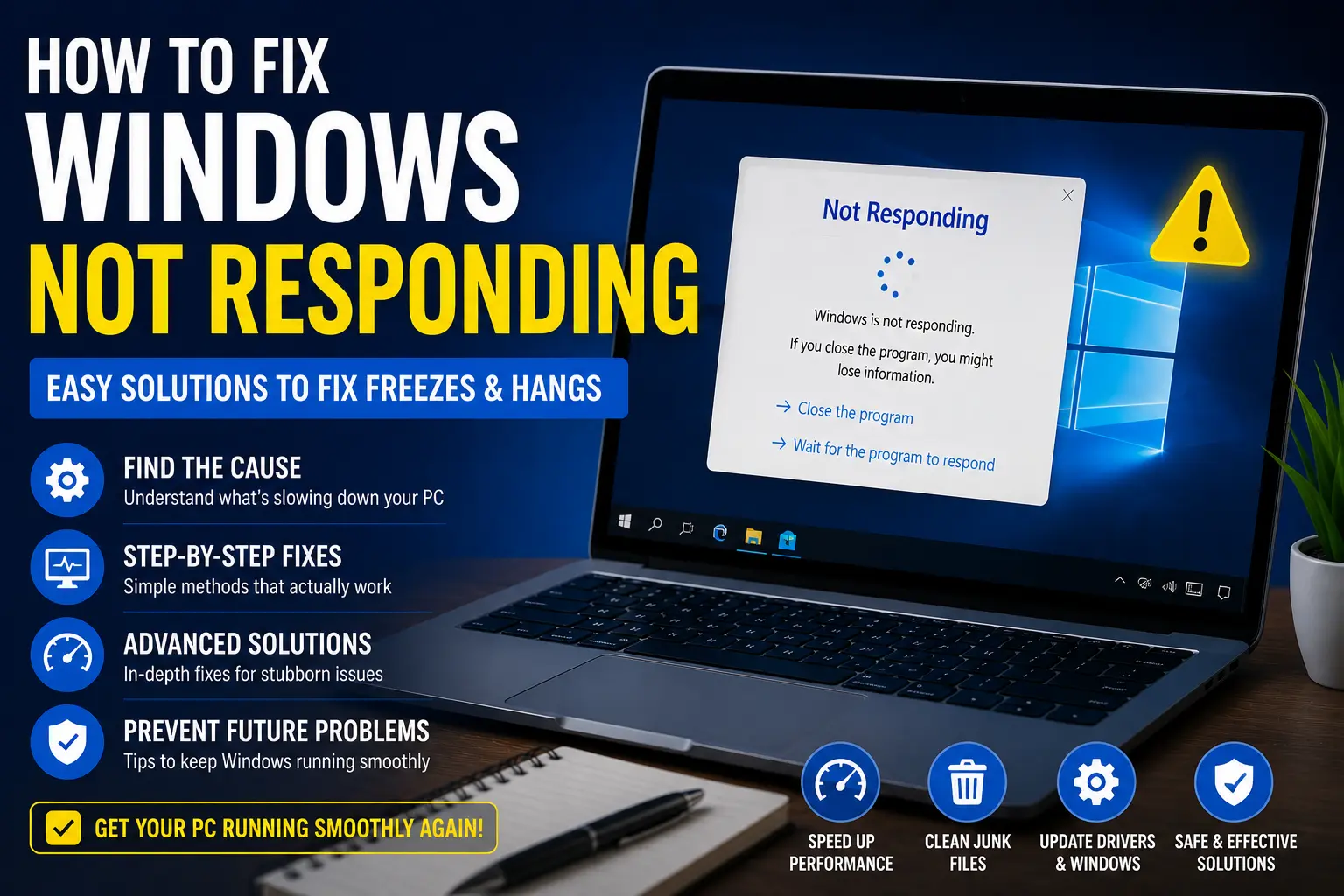
A computer freezing or becoming unresponsive can be extremely frustrating, especially when you are in the middle of important work, gaming, browsing, or attending an online meeting. You click on a program, but nothing happens. Windows stops responding, apps freeze, and sometimes the entire screen locks up completely.
This issue can affect productivity and may even lead to unsaved work being lost. In some cases, the mouse still moves while apps freeze. In more serious situations, the entire system becomes stuck and requires a forced restart.
The good news is that most “Windows not responding” problems can be fixed with the right troubleshooting steps. Common causes include overloaded system resources, corrupted files, outdated drivers, malware, or software conflicts.
This guide explains the most common reasons behind the problem and provides practical solutions that beginners can follow easily.
Main Causes
Understanding the cause of the issue helps you fix it faster.
Too Many Background Programs
Running too many applications at the same time can overload your system memory and CPU. This is especially common on computers with low RAM.
Corrupted System Files
Important Windows system files can become damaged because of improper shutdowns, failed updates, or malware infections. Corrupted files may cause Windows to freeze frequently.
Outdated Drivers
Drivers allow hardware to communicate with Windows. Old or faulty drivers can cause programs or the operating system to stop responding.
Low Storage Space
When the system drive is almost full, Windows struggles to create temporary files and manage virtual memory properly.
Malware or Problematic Software
Viruses, adware, or poorly optimized software can consume resources and make Windows unstable.
Step-by-Step Solutions
Start with the simpler methods before moving to advanced troubleshooting.
Wait a Few Minutes
Sometimes Windows appears frozen while it processes heavy tasks in the background.
Before forcing a shutdown:
- Wait 2–5 minutes
- Watch for hard drive activity
- Check whether the cursor still moves
Large updates or heavy applications may temporarily slow the system.
Restart the Computer
A restart clears temporary glitches and background processes.
Steps:
- Click the Start Menu
- Select Power
- Click Restart
If the system is completely frozen:
- Hold the power button for several seconds
- Wait about 30 seconds
- Turn the PC back on
Avoid frequent forced shutdowns because they may corrupt files.
Close Unresponsive Programs
Task Manager can help close frozen apps.
Steps:
- Press Ctrl + Shift + Esc
- Open Task Manager
- Select the unresponsive app
- Click End Task
This often restores system responsiveness immediately.
Free Up System Resources
High CPU or memory usage can make Windows stop responding.
In Task Manager:
- Open the Processes tab
- Sort by:
- CPU usage
- Memory usage
- Disk usage
- Close unnecessary high-resource apps
Be careful not to end important Windows processes.
Disable Startup Programs
Too many startup apps slow down Windows and may cause freezing.
Steps:
- Open Task Manager
- Select the Startup tab
- Disable unnecessary startup programs
Restart the PC afterward.
Check for Windows Updates
Updates often include bug fixes and stability improvements.
Steps:
- Open Settings
- Go to Update & Security
- Select Windows Update
- Click Check for updates
Install available updates and restart your computer.
Update Device Drivers
Faulty drivers are a common cause of freezing issues.
Steps:
- Right-click the Start button
- Open Device Manager
- Right-click a device
- Select Update driver
Focus on:
- Graphics drivers
- Network drivers
- Storage controllers
Run a Malware Scan
Malware can slow down or freeze Windows.
Use Windows Security:
- Open Windows Security
- Select Virus & threat protection
- Click Quick Scan
You can also perform a full system scan for deeper checking.
Free Up Disk Space
Low storage space affects performance and stability.
Remove unnecessary files:
- Open Settings
- Go to System > Storage
- Delete:
- Temporary files
- Old downloads
- Recycle Bin contents
Aim to keep at least 15–20 GB free on the system drive.
Run System File Checker
Corrupted Windows files may cause freezing.
Steps:
- Open Command Prompt as Administrator
- Type:
sfc /scannow
- Press Enter
Allow the scan to finish completely.
Use DISM Tool
If SFC cannot fully repair the system, use DISM.
Run these commands one at a time:
DISM /Online /Cleanup-Image /CheckHealth
DISM /Online /Cleanup-Image /ScanHealth
DISM /Online /Cleanup-Image /RestoreHealth
Restart your computer afterward.
Advanced Fixes
If Windows continues freezing, try these advanced solutions.
Boot into Safe Mode
Safe Mode loads only essential drivers and services.
Steps:
- Hold Shift while clicking Restart
- Select Troubleshoot
- Open Advanced options
- Choose Startup Settings
- Press Restart
- Press 4 for Safe Mode
If the system works normally in Safe Mode, a driver or third-party program is likely causing the issue.
Perform a Clean Boot
A clean boot helps identify software conflicts.
Steps:
- Press Windows + R
- Type
msconfig - Press Enter
- Open the Services tab
- Check Hide all Microsoft services
- Click Disable all
- Open the Startup tab
- Disable startup items
- Restart the computer
If freezing stops, enable services gradually to identify the problematic software.
Check Hard Drive Health
A failing drive can cause severe freezing problems.
Run CHKDSK:
- Open Command Prompt as Administrator
- Type:
chkdsk /f /r
- Press Enter
- Restart the PC
The system will scan and repair disk errors during startup.
Test RAM for Errors
Faulty memory can make Windows unresponsive.
Steps:
- Search for Windows Memory Diagnostic
- Open the tool
- Select Restart now and check for problems
Replace faulty RAM if errors appear.
Restore the System
If freezing started recently, System Restore may help.
Steps:
- Search for Create a restore point
- Open System Restore
- Choose a restore point before the issue started
- Follow the instructions
This can reverse problematic changes without deleting personal files.
Reset Windows
If nothing else works, resetting Windows may solve deep system corruption.
Steps:
- Open Settings
- Go to Update & Security
- Select Recovery
- Click Reset this PC
Choose Keep my files if you want to preserve personal data.
Tips to Prevent the Issue
Preventive maintenance can help keep Windows stable and responsive.
Restart Your PC Regularly
Frequent restarts clear temporary memory usage and background processes.
Avoid Running Too Many Apps at Once
Opening too many programs simultaneously can overload system resources.
Keep Drivers Updated
Updated drivers improve compatibility and system stability.
Install Windows Updates
Security and stability patches help prevent freezing issues.
Use Reliable Antivirus Protection
Trusted antivirus software helps prevent malware-related slowdowns.
Keep Enough Free Storage
Low disk space can affect performance and system responsiveness.
Monitor System Temperature
Overheating may cause freezing and instability.
To reduce overheating:
- Clean dust from fans
- Improve airflow
- Avoid blocking laptop vents
FAQs
Why does Windows keep freezing?
Windows may freeze because of low memory, corrupted system files, faulty drivers, malware, or hardware issues.
Is it safe to force restart a frozen computer?
Occasional forced restarts are generally safe, but frequent forced shutdowns may damage system files.
Can low RAM cause Windows not responding errors?
Yes. Insufficient RAM can make the system slow and unresponsive, especially when multitasking.
How do I know if a driver is causing the issue?
If freezing stops in Safe Mode or after updating drivers, a faulty driver may be responsible.
Does malware cause Windows freezing?
Yes. Malware can consume system resources and interfere with Windows processes, leading to freezing problems.
Conclusion
A Windows not responding problem can interrupt work, slow down productivity, and make your computer difficult to use. Fortunately, many freezing issues can be fixed with simple troubleshooting steps.
Start with basic solutions like restarting the PC, closing frozen apps, updating drivers, and scanning for malware. If the issue continues, advanced fixes such as Safe Mode, Clean Boot, system file repair, or hardware testing can help identify and solve the problem.
Regular maintenance, updates, and proper storage management can also prevent future freezing issues. By following the methods in this guide, you can improve system stability and keep Windows running smoothly.
