
Introduction
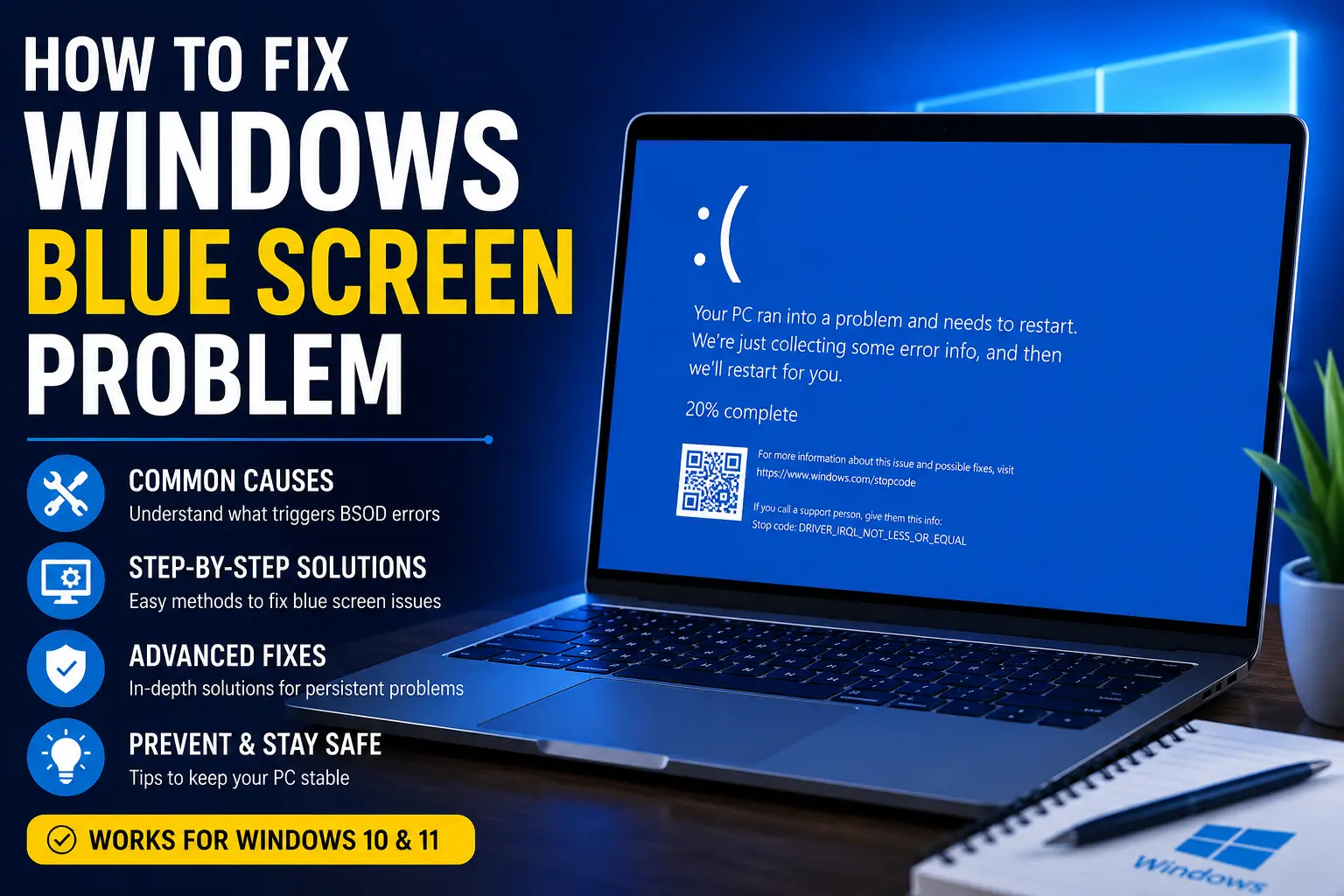
A Windows blue screen problem, often called the “Blue Screen of Death” or BSOD, is one of the most frustrating issues computer users face. Your PC suddenly crashes, shows a blue error screen, and restarts without warning. Sometimes it happens while gaming, working, updating Windows, or even during startup.
These crashes are more than just annoying. A blue screen can interrupt important work, cause data loss, and make your computer unstable. In some cases, the problem becomes so serious that Windows refuses to start properly.
The good news is that most blue screen errors can be fixed. Many BSOD problems are caused by driver conflicts, faulty hardware, corrupted system files, or software issues. With the right troubleshooting steps, you can often solve the issue without needing professional repair.
This guide explains the common causes of Windows blue screen problems and provides practical solutions that beginners can follow easily.
Main Causes
Understanding what causes a blue screen can make troubleshooting much easier.
Faulty or Outdated Drivers
Drivers allow hardware devices like graphics cards, printers, and network adapters to communicate with Windows. If a driver becomes outdated, corrupted, or incompatible, it may trigger a blue screen error.
Graphics drivers are one of the most common causes of BSOD crashes.
Corrupted System Files
Windows relies on many important system files to operate correctly. If these files become damaged due to improper shutdowns, malware, or failed updates, the operating system may crash.
Hardware Problems
Failing hardware components such as RAM, hard drives, SSDs, or overheating CPUs can cause sudden system crashes. Faulty memory modules are especially known for causing blue screen errors.
Windows Update Issues
Some Windows updates may conflict with existing drivers or software. An incomplete or failed update can also make the system unstable.
Malware or Third-Party Software Conflicts
Certain antivirus programs, system optimization tools, or malware infections can interfere with Windows processes and trigger blue screen crashes.
Step-by-Step Solutions
Here are the most effective methods to fix Windows blue screen problems.
Restart Your Computer
A temporary system glitch can sometimes cause a one-time blue screen.
Steps:
- Shut down your computer completely
- Wait about 30 seconds
- Restart the PC
- Observe whether the issue happens again
If the blue screen does not return, the crash may have been temporary.
Note the Error Code
Blue screens usually display an error code such as:
- CRITICAL_PROCESS_DIED
- MEMORY_MANAGEMENT
- IRQL_NOT_LESS_OR_EQUAL
- SYSTEM_SERVICE_EXCEPTION
Write down the code before the PC restarts. It often points to the source of the problem.
Disconnect External Devices
Faulty external devices can sometimes trigger BSOD errors.
Disconnect:
- USB drives
- Printers
- External hard drives
- Gaming accessories
- Docking stations
Restart your computer after disconnecting the devices.
Boot into Safe Mode
Safe Mode loads Windows with only essential drivers and services.
Steps:
- Hold the Shift key while clicking Restart
- Select Troubleshoot
- Choose Advanced Options
- Click Startup Settings
- Press Restart
- Press 4 to enter Safe Mode
If your computer works normally in Safe Mode, a driver or software conflict is likely causing the problem.
Update Device Drivers
Outdated drivers are a major cause of blue screen crashes.
Steps:
- Right-click the Start button
- Open Device Manager
- Look for warning icons
- Right-click a device
- Select Update driver
Focus especially on:
- Graphics drivers
- Network drivers
- Storage controllers
- Audio drivers
You can also download the latest drivers directly from the hardware manufacturer’s website.
Run Windows Memory Diagnostic
Faulty RAM can lead to frequent blue screen errors.
Steps:
- Search for Windows Memory Diagnostic
- Open the tool
- Select Restart now and check for problems
Your PC will restart and test the memory automatically.
Scan and Repair System Files
Corrupted system files can cause system instability.
Run SFC Scan
- Open Command Prompt as Administrator
- Type:
sfc /scannow
- Press Enter
Wait for the scan to complete.
Run DISM Tool
If problems remain, run these commands one by one:
DISM /Online /Cleanup-Image /CheckHealth
DISM /Online /Cleanup-Image /ScanHealth
DISM /Online /Cleanup-Image /RestoreHealth
Restart your PC afterward.
Check for Windows Updates
Microsoft regularly releases fixes for known blue screen issues.
Steps:
- Open Settings
- Go to Windows Update
- Click Check for updates
- Install available updates
Restart the system after installation.
Remove Recently Installed Software
If blue screens started after installing a program, that software may be the cause.
Steps:
- Open Control Panel
- Select Programs and Features
- Find recently installed software
- Uninstall suspicious programs
- Restart your PC
Security tools and system optimization programs are common offenders.
Advanced Fixes
If the basic methods do not solve the problem, try these advanced solutions.
Check Hard Drive Health
A failing drive can corrupt system files and trigger BSOD crashes.
Run CHKDSK
- Open Command Prompt as Administrator
- Type:
chkdsk /f /r
- Press Enter
- Type Y when prompted
- Restart the computer
Windows will scan and repair disk errors during startup.
Roll Back Drivers
Sometimes newly updated drivers create compatibility issues.
Steps:
- Open Device Manager
- Right-click the device
- Select Properties
- Open the Driver tab
- Click Roll Back Driver
This restores the previous stable version.
Disable Automatic Restart
Windows may restart too quickly for you to read the error message.
Steps:
- Search for Advanced system settings
- Open Startup and Recovery
- Uncheck Automatically restart
This helps you identify the exact BSOD error code.
Use System Restore
System Restore can return Windows to a stable state.
Steps:
- Search for Create a restore point
- Open System Restore
- Select a restore point before the issue started
- Follow the instructions
This will not delete personal files.
Reset or Reinstall Windows
If nothing works, reinstalling Windows may solve deep system corruption.
Reset Windows:
- Open Settings
- Go to System > Recovery
- Select Reset this PC
Choose Keep my files if you want to preserve personal data.
Tips to Prevent the Issue
Preventive maintenance can greatly reduce blue screen problems.
Keep Drivers Updated
Regularly install updated drivers from trusted manufacturers to improve stability and compatibility.
Avoid Overheating
Overheating can damage hardware and cause system crashes.
Tips:
- Clean dust from fans
- Ensure good airflow
- Use cooling pads for laptops
- Monitor CPU temperatures
Install Reliable Antivirus Software
Malware can corrupt system files and trigger crashes. Use trusted antivirus software and keep it updated.
Avoid Untrusted Software
Pirated software, unofficial drivers, and unknown system tools often create instability.
Back Up Important Files
Blue screen crashes can sometimes lead to data loss. Regular backups protect your important documents and photos.
FAQs
What causes a Windows blue screen problem?
Blue screens are usually caused by faulty drivers, hardware failures, corrupted system files, overheating, or software conflicts.
Can RAM cause blue screen errors?
Yes. Faulty or incompatible RAM is a common cause of BSOD crashes, especially MEMORY_MANAGEMENT errors.
Is a blue screen always a hardware issue?
No. Many blue screen problems are caused by software, drivers, or corrupted Windows files rather than physical hardware damage.
How do I know which driver is causing the blue screen?
The BSOD error code or crash log can help identify the faulty driver. Updating drivers one by one often helps locate the problem.
Can Windows updates cause blue screen errors?
Yes. In some cases, Windows updates may conflict with drivers or software, leading to system crashes.
Conclusion
A Windows blue screen problem can feel alarming, especially when crashes happen repeatedly. However, most BSOD issues can be fixed with the right troubleshooting steps.
Start with basic solutions like updating drivers, scanning system files, and checking for Windows updates. If the problem continues, deeper fixes such as memory testing, disk repair, or System Restore can usually solve the issue.
Keeping your computer updated, cool, and free from harmful software will also reduce the risk of future crashes. With proper maintenance and careful troubleshooting, you can keep your Windows PC stable and running smoothly.
